
Adding Your Context
Overview
You can add files to upload to use in any canvas using the (+) in the prompt box and clicking the "Upload files" button:
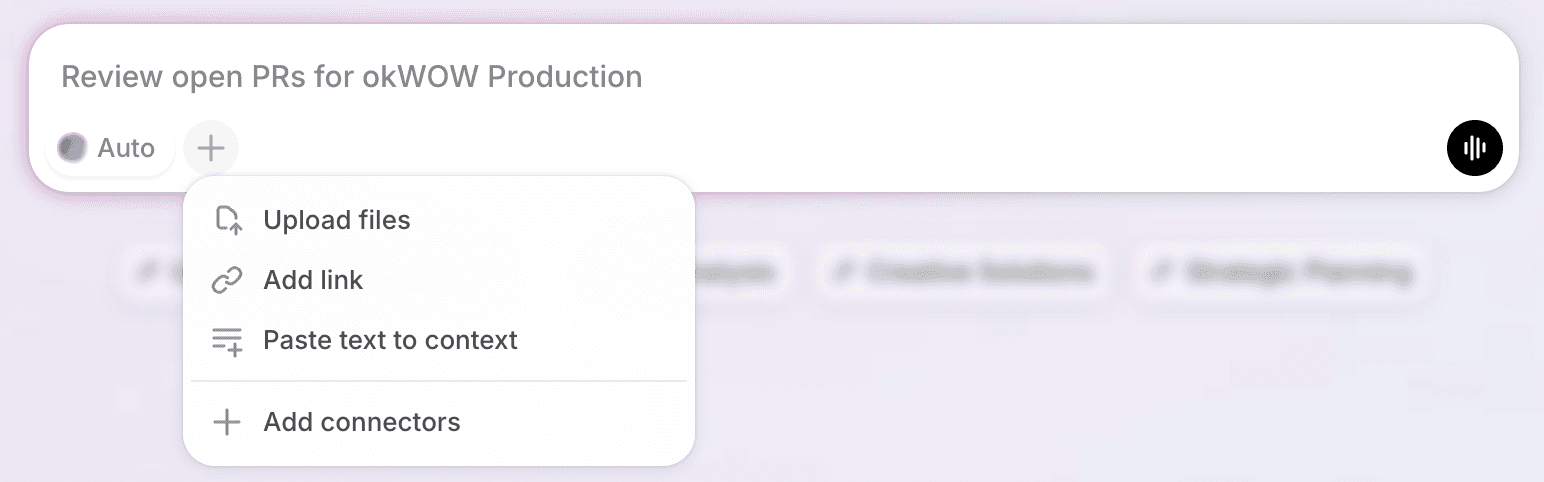
A pop-up folder will show up for you to select the files you want to upload. File sizes are limited to 40MB at the moment. Once you upload files we process them to ensure they are fully integrated and accessible throughout the system. This can take up to 8 minutes depending on the file size.
Files for Context
When you upload a file, in that chat session Indi will use that file for context throughout that session. Once uploaded, files can be referenced in new chats by using the (@) mention menu and navigating to files and selecting the uploaded file from the list or by searching for the file name.